
- To create a new segment click Add Segment.
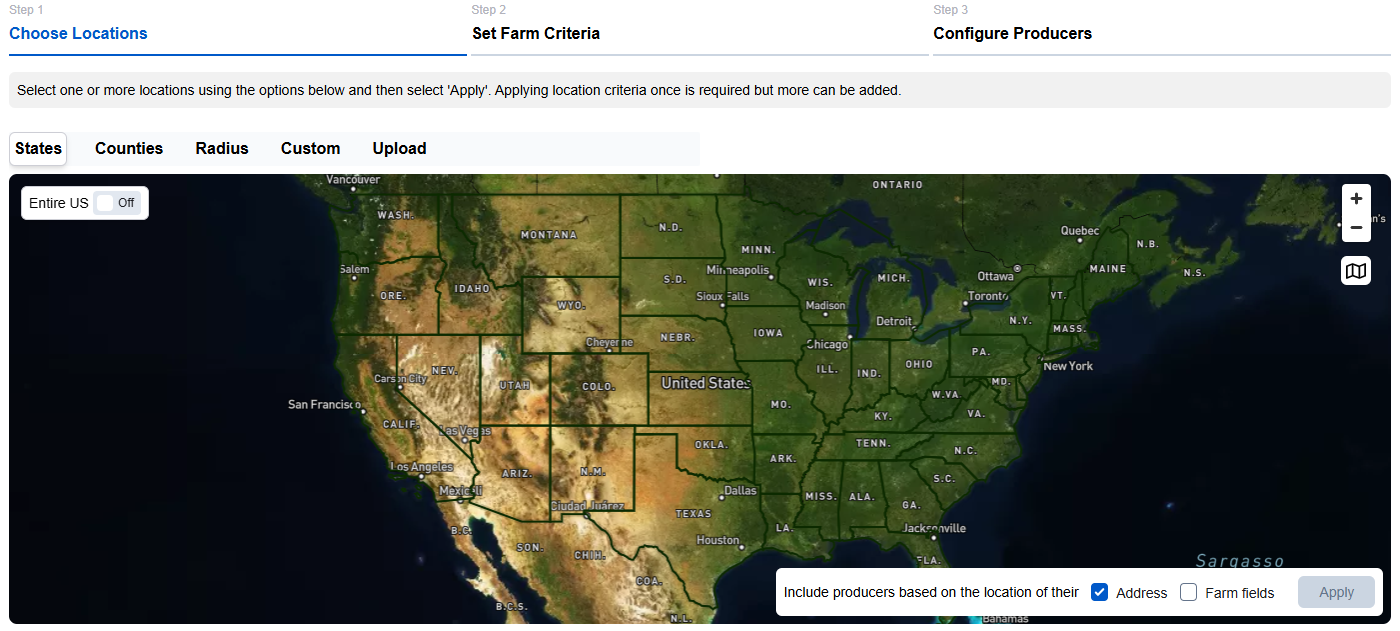
- Select the desired geography. You can choose entire states or counties by clicking on the map, create custom areas using a radius or polygon, or upload files such as county lists, state lists, or shapefiles. Please note that you can only create segments within the states and counties your account has permission to access.
- While each segment requires at least one location, your segment will include producers from all the locations you select. As you add locations, use the options below the map to specify whether producers need to have an address, an agricultural field, or both in the selected areas. You can set different requirements for each location. Click Apply.
- After selecting the desired locations, click Next. The selected criteria will appear in the “segment criteria” panel on the right side of the screen. If you’d like to remove any criteria that has already been added, simply click the ‘X’ button next to it.
Next, set the desired Farm Criteria for this segment. Begin by selecting a category; based on your selection, additional fields may appear. To ensure that producers within the segment operate farms with specific characteristics, it is recommended to apply one or more ‘Farm Operation’ criteria. You may include multiple criteria as needed. After selecting a category and its corresponding attribute, define a minimum and/or maximum threshold. If the minimum value is left blank, a default of zero will be assumed. If the maximum value is omitted, only the minimum threshold will be applied.
- All fields in this panel must be completed or selected before the ‘Apply’ button becomes available. Click Apply to confirm your selections.
- When choosing multiple criteria, you can choose if you want to see results combined or independent.
- Combined: Producers must meet all criteria simultaneously.
- Independent: Producers can meet any one of the criteria.
- To add additional criteria, follow the previous steps and click Apply. When finished click Next.
This process can be repeated to add as many custom criteria as you’d like, but like locations, at least one is needed.
Now, it is time to configure producers. Optionally edit the default configuration for producers in the segment. If no Roles or Personas are selected, producers with all Role and Persona types will be included
- Role/Persona: If needed, choose the desired Role(s) and/or Persona(s), which are assigned to producers based on DTN’s data.
- Exclude Producers in other segments: If you’ve created other segments, you can ensure that any producers included in those segments are excluded from the current one by selecting an existing segment from the drop-down. This helps prevent overlap and keeps your segmentation clean and distinct.
- Remove duplicates allows you to only allow one contact per individual, address, phone number, or email address. It is recommended that you select an option to minimize redundancy among the segment’s producers.
- Click Finish
Finally, review the selected criteria and update the segment name so it clearly describes your segment before saving.
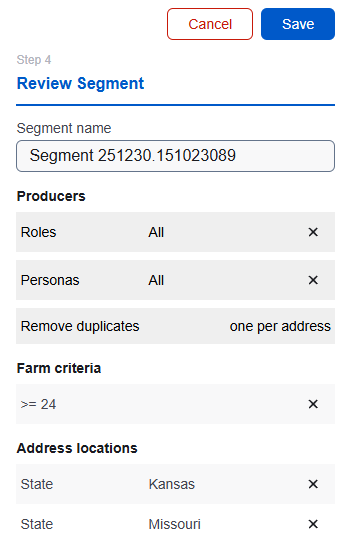
- Click Save.
- Your new segment will begin processing. You’ll see it appear in the segment list. If the segment is complex or includes large geographies, processing may take up to a minute to complete.