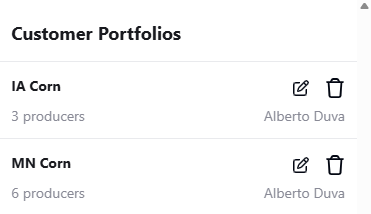
The Customer Portfolios page serves as a centralized workspace where you can organize and manage groups of leads, prospects, and customers. In this page producer information, territory insights, and field data come together.
You can access the Customer Portfolios page by selecting a Portfolio from the Home page, or by choosing the folder icon on the left side of the page and picking a Portfolio from the menu in the top left corner.

When you open a Portfolio, you will see a producer table, an interactive map, and an overview panel. The overview panel on the right provides a count of producers by Status, such as Customers, Prospects, or Leads, giving you a quick understanding of your relationship mix within that Portfolio. Additionally, the Production tab provides production data and the Revenue tab identifies growth potential by estimating product-specific revenue for each producer.
Across the top of the page, you can filter by Field Locations and Crops. These filters immediately shape what appears on both the map and the producer list. When a filter is applied, Total crop acreage updates automatically for each producer, and any producer without fields matching the selected criteria is removed from the displayed list. This makes it easy to focus on specific areas or growing interests and ensures that the data you see always reflects the selected conditions.
Managing producers inside a Portfolio is straightforward. Select one or more producers using the checkboxes in the table, then choose the action you want. The Remove button takes a producer out of the current Portfolio. Copy to places a producer into another Portfolio while keeping them where they are. Move to transfers them completely, removing them from the current Portfolio and placing them into a new one. These tools help you adjust territories as priorities shift without losing the structure of your overall portfolio system.

Portfolio management also extends to the Home page. From there, you can rename a Portfolio using the pencil icon or delete one entirely using the trash icon. This helps you keep your workspace up to date as your responsibilities and focus areas evolve.